Stop Teams Showing Away After 5 Minutes
Vishal Punwani

Published:
Updated on:
You can't change Teams' 5-minute idle timer. It's built into the app, and neither users nor admins get a setting for it. To stop showing Away, keep your computer from locking or sleeping, set a manual status with a Duration (Busy and Do not disturb stick best), block focus time on your calendar, and add a status message that says what you're working on.
Why does Microsoft Teams change your status to Away after 5 minutes?
Teams treats no keyboard or mouse input as a sign you've stepped away. After about 5 minutes without input, it switches you from Available to Away.
Microsoft's own troubleshooting docs say your status changes to Away if your desktop is inactive for more than five minutes [2]. An analysis of the Teams web client code found the idle threshold set to 300,000 milliseconds (5 minutes), plus a second long-idle state at 20 minutes [3]. The goal makes sense: don't let people ping someone who isn't there. The trouble is that typing isn't the same as working. Reading a spec, thinking through a design, or reviewing a printout all look idle to Teams.
What counts as activity for Teams presence on desktop, web, and mobile?
The desktop app counts keyboard and mouse input anywhere on your computer. The web and mobile apps are stricter.
Client | Counts as active | Sets you Away |
|---|---|---|
Desktop app | Input in any app on your computer | About 5 minutes with no input, or a screen lock |
Web | Input inside the Teams tab only, unless the activity setting is on | Working in other tabs or apps |
Mobile | App open in the foreground | App in the background; Offline after 24 hours |
Microsoft confirms the mobile rule: the app shows Away whenever it's in the background and goes Offline after 24 hours of inactivity [1]. Teams for Web sets your status from activity in its own tab, not across your desktop [4].
Can you change or disable the 5-minute idle timeout in Teams?
No. You won't find a setting for the Away timer, and neither will your admin.
Teams sets you Away after about 5 idle minutes, and nobody can change that timer, users or admins [11]. Microsoft's admin docs don't even give a number. They just say Away kicks in after you've been inactive "for a few minutes" [1]. The one related option is for the web client. The setting "Keep my current status when I'm active outside of Teams on the web" is off by default, you turn it on yourself, and it only works in Chrome 94+ or Edge 114+ [5]. It doesn't make the timer longer. It just lets Teams see activity in your other tabs.
How do you set a manual status with a Duration in Teams?
Click your profile picture, click your current status, then choose Duration. Pick a status, set "Reset status after," and click Done.
Select your profile picture in the top right.
Select your current status, then Duration.
Pick a status and a reset time (or Custom).
Select Done.
If you don't pick a duration, Busy and Do not disturb last 1 day and most other manual statuses last 7 days [1]. Be warned: manual Available is the least reliable choice. Some users say the new Teams still overrides a manual status after long inactivity [6]. If you need a status that sticks, Busy or Do not disturb with a duration holds up better.
How do you use a custom status message to show you're working?
A status message won't change the yellow dot. It does tell people what you're doing and when you'll reply, and that matters more.
Select your profile picture, then Set status message.
Write something specific, like "Heads down on the Q3 roadmap, replying by 2pm."
Turn on Show when people message me so it pops up when someone opens a chat with you.
Set Clear status message after to match your focus block.
Someone who sees Away plus a clear message knows you're working and when you'll answer. That's exactly what the dot alone can't tell them.
Does keeping the Teams mobile app open affect your desktop status?
Yes. If you're signed in on more than one device, Teams generally shows the status from the one you used most recently, so your phone can override your laptop.
If your phone was the last device you used and the app is now in the background, you can show as Away even after your computer wakes up [12]. Microsoft also counts actively using the mobile app instead of the desktop as desktop inactivity [2]. Keeping the phone app open in the foreground keeps you Available, but it drains your battery and only covers up the real issue. If you keep showing Away for no clear reason, sign out of Teams on your phone and test again.
Which Windows and macOS settings make Teams show Away?
Screen lock and sleep settings flip you to Away right away, often before the 5 minutes are up. Lengthen them if your IT policy allows it.
Some work laptops lock after 2 or 3 minutes by policy, and a lock sets you to Away immediately [11].
OS | Where to adjust |
|---|---|
Windows 11 | Settings > System > Power & battery > Screen, sleep & hibernate timeouts |
Windows 11 | Settings > Accounts > Sign-in options > Dynamic lock (turn off if it locks you early) |
macOS | System Settings > Lock Screen > screen saver and display-off timers |
macOS | System Settings > Lock Screen > Require password after screen saver |
On a managed device, IT policy can override all of these. And none of them stop the 5-minute input timer.
How do calendar events, meetings, and Do Not Disturb affect Away?
Teams reads your Outlook calendar and sets you to Busy during scheduled meetings. A manual Busy or Do not disturb lasts a full day by default.
Your Teams status comes from three things: your activity, the state of the app, and your Outlook calendar [11]. That's why focus blocks marked as Busy in Outlook are a common, legitimate way to show you're working rather than away. Turning on automatic replies sets your status to Out of office for that period [1]. Manual Busy and Do not disturb last 1 day unless you set a different duration [1]. For deep work, use a recurring calendar block plus Do not disturb. It's honest, and it lasts.
Can Microsoft 365 admins change the presence timeout?
No. Admins can't change the 5-minute Away timer for the organization.
Admins do control things that affect presence indirectly. The biggest one is device lock policy, set through tools like Intune or Group Policy, which decides how fast a locked screen flips everyone to Away. Admins should also know that apps with Microsoft Graph access can read a user's current presence, and some monitoring tools record it over time [11]. If you're a team lead dealing with constant "why are you Away?" questions, ask IT about lock timeouts before you ask about Teams settings.
How does the new Teams differ from classic Teams on Away status?
Neither version lets you change how long you stay Available. The new Teams does handle manual statuses and the web client a bit differently.
Classic Teams and the new Teams app both lack a setting for how long you appear active [14]. In classic Teams, a manual status held until its duration ran out. In the new Teams, some users report that a manual status still gets overridden after long inactivity [6]. Minimizing the new Teams desktop app doesn't set you Away, because it keeps running in the system tray or menu bar [12]. The web version is the weak spot. Without the activity setting, it can't see what you do across your desktop [4].
Do mouse jigglers and keep-awake apps keep Teams Available?
Mostly, yes. Simulated input resets the idle timer. But that only proves they trick the timer, not that they're safe to use.
A physical jiggler sits under your mouse and spins a disk so the optical sensor thinks the mouse is moving [15]. Software jigglers move the cursor on a timer. Keep-awake apps like Caffeine stop sleep and screen lock, but some don't send input, so you can still go Away after 5 minutes. Scripts work the same way as software jigglers, and they run as processes that endpoint tools can see. None of these change what Teams reads from your calendar, and none tell anyone what you're actually doing.
What are the risks of using mouse jigglers or presence-faking tools?
The real risk is your job. Faking activity can be treated as misconduct, not a harmless hack.
In 2024, more than a dozen Wells Fargo employees were fired after a review of allegations involving "simulation of keyboard activity creating impression of active work," according to FINRA disclosures [8]. Common monitoring software can log the apps and websites people use and record keyboard and mouse input [13]. Installing unapproved software usually breaks IT policy, and many companies restrict unknown USB devices. There's a trust cost too. If a manager finds a jiggler, they'll start doubting your real work as well.
Does Teams Away status actually indicate productivity?
No. The dot shows when you last touched your keyboard or mouse, not what you got done.
Microsoft's own Work Trend Index research found that 87% of employees say they're productive at work, while 85% of leaders say hybrid work has made it hard to feel confident that people are being productive [7]. Microsoft calls that gap "productivity paranoia" and recommends judging people on the quality and impact of their work, not on activity signals [7]. A yellow dot can mean someone stepped away for coffee. It can also mean they're on their third straight hour with a hard problem.
What should you do if Teams shows Away while you're working?
Start by checking your other devices, your screen lock, and any leftover manual status. Those three cause most cases of Away showing while you're working.
Microsoft has a support article for exactly this bug: Away doesn't switch back to Available after you start working again [2].
Sign out of Teams on your phone (the last device you used wins) [12].
Select your status, then Reset status to clear any leftover manual setting.
On the web, turn on the outside-activity setting in Chrome or Edge [5].
Check whether your screen lock timer is too short.
Fully quit and restart Teams, then clear the cache if it's still stuck.
How can remote teams signal availability better than a status dot?
Agree on team norms about response times, then use tools that show context (what someone is doing) instead of just whether they've touched a keyboard.
Method | What it signals |
|---|---|
Status message with return time | What you're doing and when you'll reply |
Calendar focus blocks | Planned deep work, visible to everyone |
Response-time norms (e.g. 2 hours in chat) | Takes away the pressure to look green all day |
Virtual office presence | Who's free, focused, or in a meeting, at a glance |
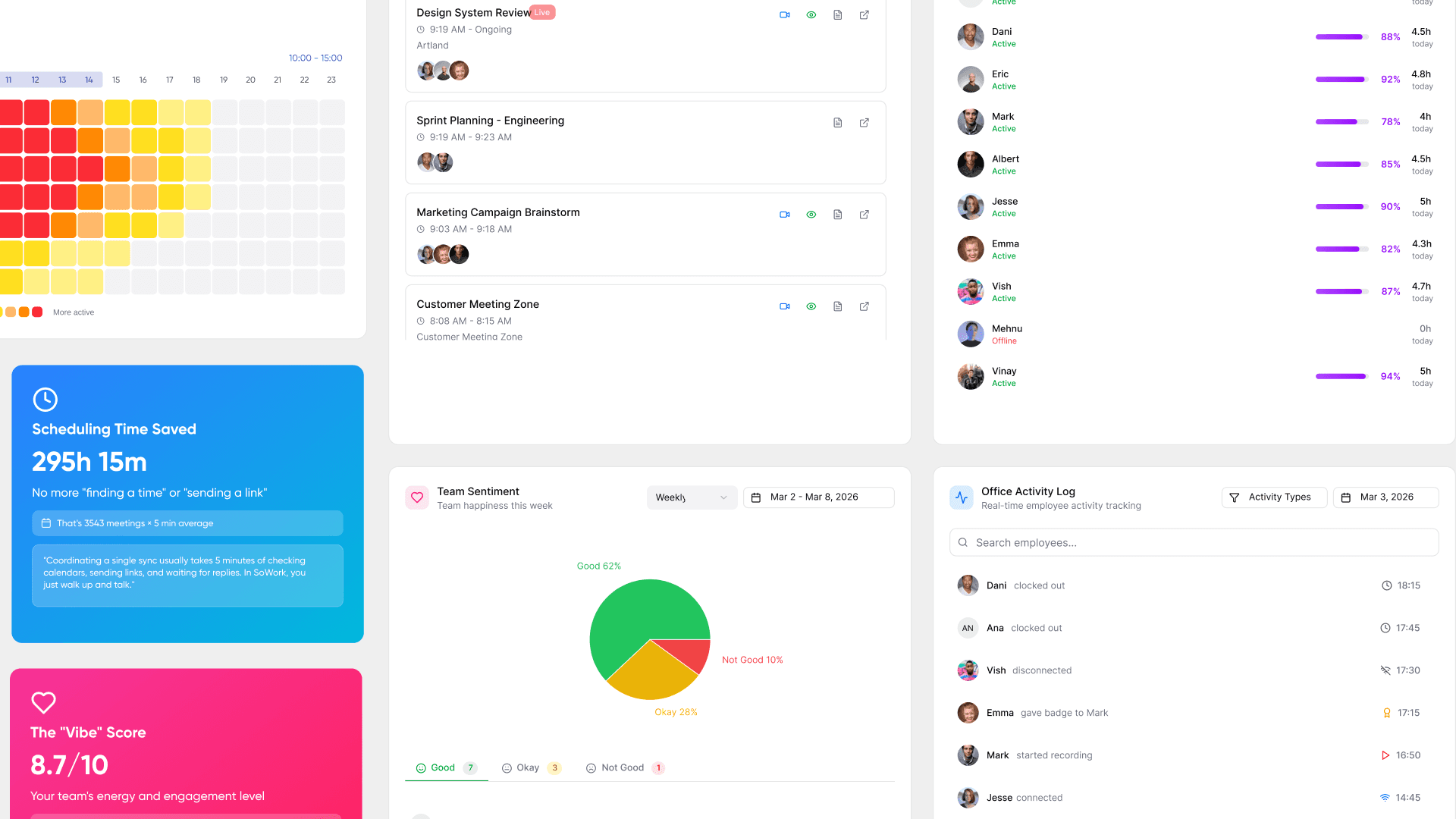
SoWork's Focus Modes (Simple Mode and Mini Mode) let you signal deep work while staying loosely connected. Its automatic calendar sync updates your status when a meeting starts, so you don't have to.
How do SoWork, Gather, and Roam handle presence compared to Teams?
Virtual offices show you where people are and what they're doing, not just a green or yellow dot. All three tie presence to calendars and give more context than Teams does.
Platform | Presence approach |
|---|---|
Microsoft Teams | Dot based on keyboard and mouse input, calendar, and app state [1] |
Gather | Available, Busy, or Do Not Disturb; automatically switches to Do Not Disturb during calendar meetings; shows idle time [9] |
Roam | Room-based view of who's free, who's in a meeting, and what they're working on [10] |
SoWork | Shows who's free, focused, or in a meeting; automatic calendar sync; AI agents work in the office alongside people |
One 2026 roundup rated SoWork "best for live presence and calendar sync" [16].
Bottom line: how do you stop Teams from showing Away?
You can't turn off the 5-minute timer, so stop trying to beat it and start telling people what you're doing.
Fix screen lock and multi-device problems first, then use Busy or Do not disturb with a Duration, calendar focus blocks, and a specific status message. Skip mouse jigglers, because getting caught can cost you your job. If you lead a distributed team, judge people on output and give them a presence tool that shows context, like a virtual office, instead of a dot that only tracks mouse movement.
Key Takeaways
Teams sets you Away after about 5 minutes with no keyboard or mouse input, and no user or admin setting changes that.
A screen lock or sleep sets you Away immediately, so check your lock timeout first.
Busy or Do not disturb with a Duration holds more reliably than manual Available in the new Teams.
Using Teams on the web? Turn on "Keep my current status when I'm active outside of Teams" in Chrome or Edge.
Sign out of the mobile app if your phone keeps making you look Away.
Mouse jigglers trick the timer but can get you fired; Wells Fargo dismissed more than a dozen staff for simulating activity.
The status dot doesn't measure productivity. Agree on response-time norms and judge people on output.
Virtual offices like SoWork show who's free, focused, or in a meeting, which gives far more context than a yellow dot.
Related reading
How to Migrate from Gather to SoWork: A Step-by-Step Guide for Remote Teams in 2026
How to Migrate from Spot to SoWork: A Step-by-Step Guide for Remote Teams in 2026
How to Migrate from Kumospace to SoWork: A Step-by-Step Guide for Remote Teams in 2026
Sources
Teams for Web sets status based on activity within the browser tab, not across the desktop.
Roam shows everyone's room, who's free, who's in a meeting, and what they're working on.
Common bossware can log applications and websites and record keyboard and mouse input.
Neither classic nor new Teams lets users set a custom duration for appearing active.
Physical mouse movers sit under the mouse and use a spinning disk to trick the optical sensor.
A 2026 virtual office software roundup lists SoWork as best for live presence and calendar sync.
FAQ
How to stop Teams from showing away in 5 minutes?
Can I turn off the Away status in Teams permanently?
Does setting my status to Available stop Teams marking me Away?
Why does Teams show Away when I'm working in another app?
Does Teams show Away when minimized?
Can my employer tell if I use a mouse jiggler?
Can my manager see my Teams status history?
How long before Teams shows me as Offline?
Blogs
Read Similar Articles
Remote Team Analytics: Complete Guide to Data-Driven Remote Work Management in 2026
Complete Guide to Gaining Visibility Into Remote Team Performance and Collaboration