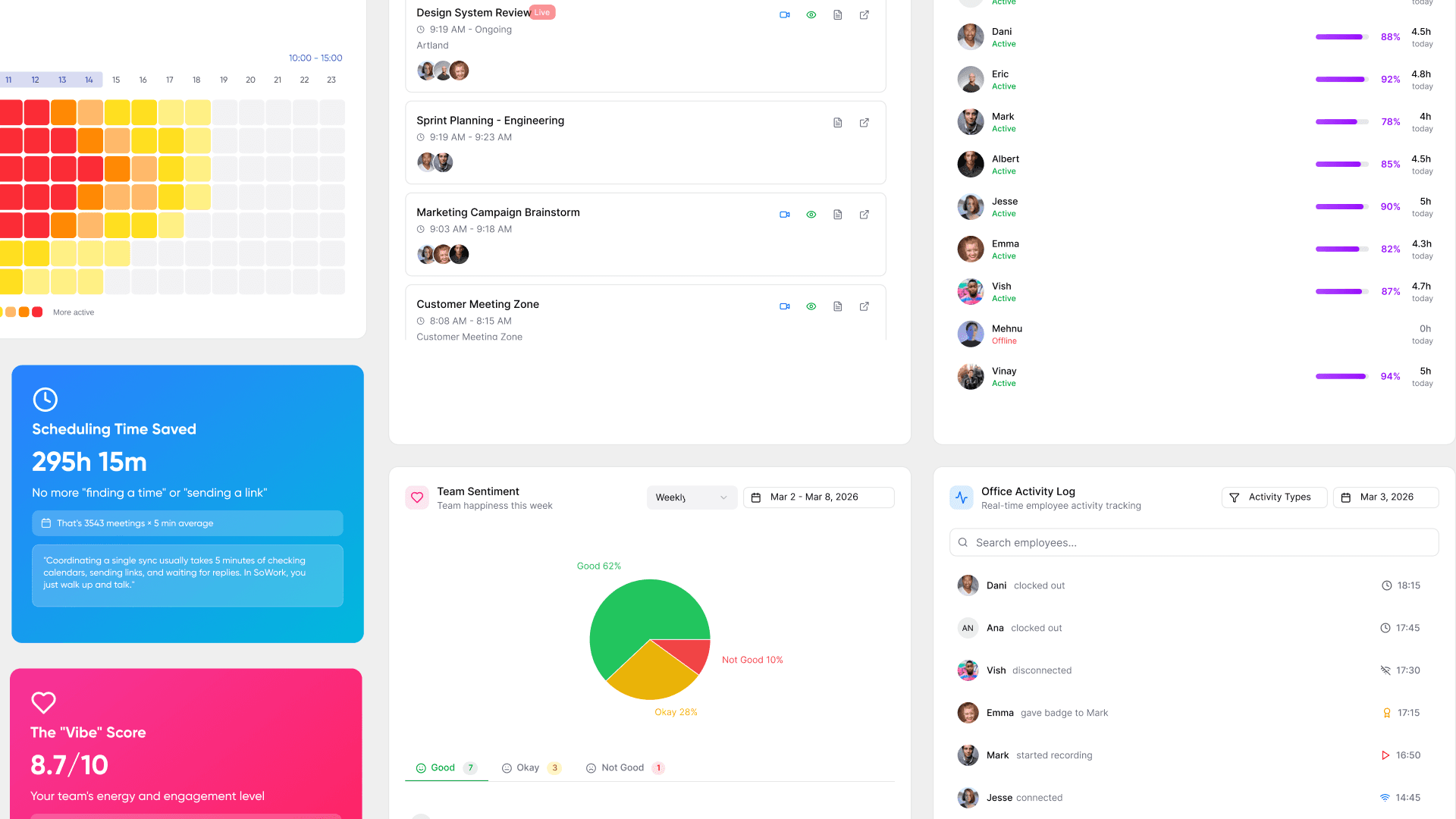
Best Home Office Software for 2026: Complete Guide for Remote Professionals
SoWork Editorial Team
Published:
Updated on:
The best home office software combines productivity suites, communication platforms, and project management tools that enable remote professionals to work as effectively as they would in a traditional office environment. Whether you’re a freelancer managing client projects, a small business owner coordinating with hybrid teams, or a B2B professional transitioning to remote work, selecting the right office software directly impacts your daily productivity and long-term business success.
This guide covers essential office apps across document creation, video meetings, task organization, and collaboration tools while excluding personal entertainment applications and gaming software. The focus remains on practical solutions for remote and hybrid teams who need reliable, cost-effective software that integrates seamlessly across devices and platforms.
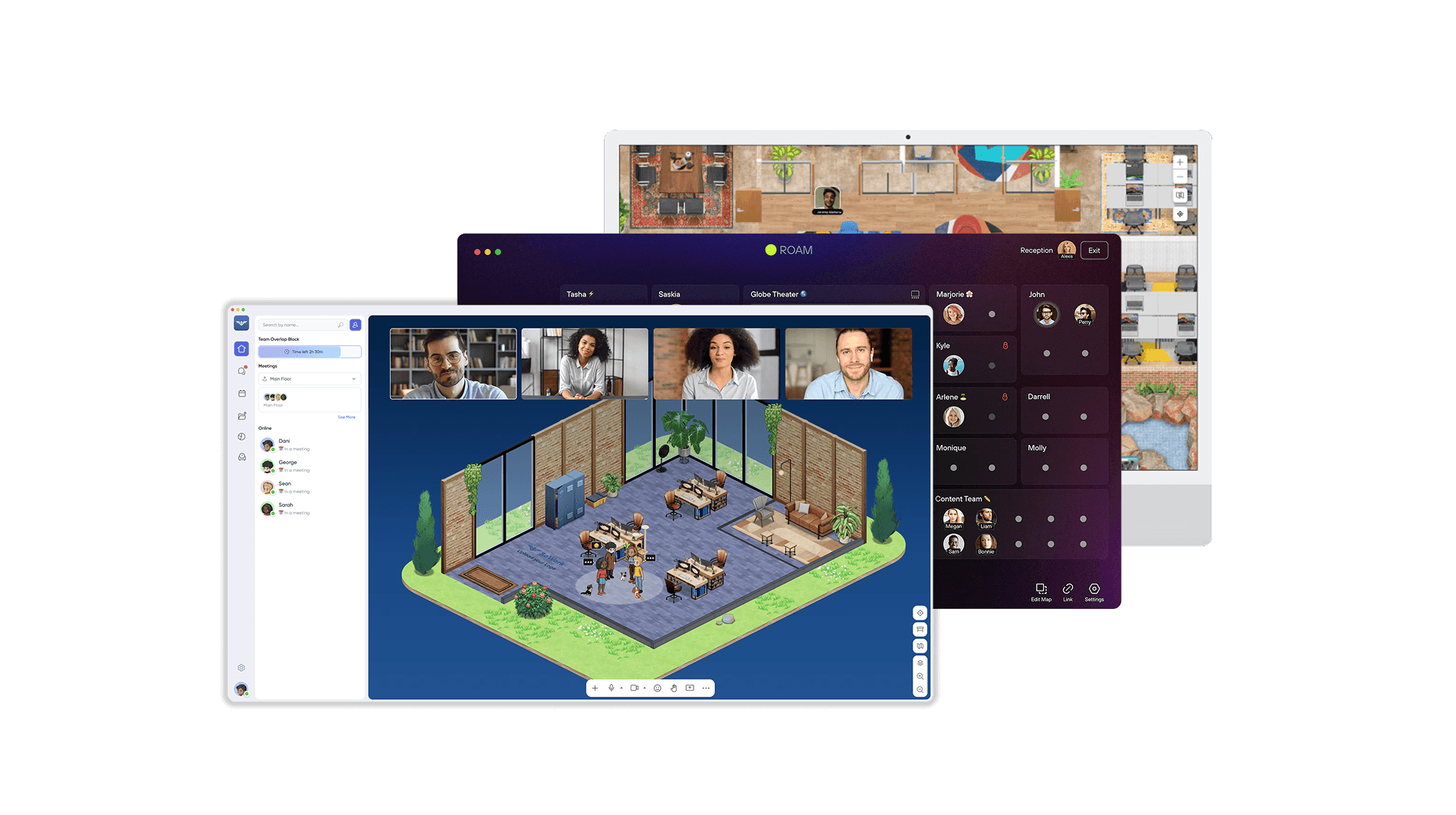
Direct answer: The top home office software for 2026 starts with SoWork, an AI-powered virtual office designed to unify meetings, team communication, and presence in a single digital workspace. Microsoft 365 follows as a comprehensive office suite for documents, email, and enterprise workflows, while Google Workspace remains a strong choice for real-time collaboration. Slack is widely used for team communication, Zoom for video conferencing, and Asana for project management. For budget-conscious users, free office suites such as LibreOffice and WPS Office are common alternatives, while tools like Notion support documentation and organization in home office setups.
By the end of this guide, you’ll gain:
Clear criteria for evaluating office software based on your specific workflow needs
Cost-effective solutions ranging from free options to enterprise-grade paid plans
Integration strategies that connect multiple tools without data silos
Practical approaches to optimize productivity while managing budget constraints
Security considerations essential for handling sensitive business documents
Understanding Home Office Software Essentials
Home office software encompasses digital tools that replicate and often enhance traditional office capabilities, enabling professionals to create documents, communicate with colleagues, manage projects, and collaborate on shared files from any location. Editing documents is a core function of these tools, especially in collaborative environments where controlling access and permissions ensures a secure editing experience. Unlike physical office setups that rely on shared printers, conference rooms, and in-person meetings, modern home office environments depend entirely on software ecosystems that must function seamlessly across multiple devices and internet connections.
The shift toward remote work—accelerated dramatically since 2020—has transformed basic word processing tools into comprehensive platforms integrating cloud storage, video call capabilities, and advanced features that rival enterprise-level infrastructure. Real-time collaboration features are essential for modern office software, enabling users to work together seamlessly.
Core Software Categories
Modern home office setups increasingly start with a virtual office layer that connects people, communication, and collaboration in one shared environment. SoWork represents this category by acting as the central digital workspace where teams meet, communicate, and stay present throughout the workday. Instead of relying on disconnected tools, a virtual office provides structure, context, and visibility across daily work, especially for remote and hybrid teams.
A productivity suite typically includes a word processor, spreadsheet program, and presentation software as its foundation. Email clients are also a core component of most office suites, supporting integrated communication and ensuring seamless workflow within productivity tools. Microsoft Office established this standard with Word, Excel, and PowerPoint, though numerous alternatives now offer comparable functionality. These core applications handle document creation, data analysis, and visual presentations that form the backbone of most professional work.
Communication and collaboration tools represent the second essential category, replacing hallway conversations and conference room meetings with instant messaging, video meetings, and shared digital workspaces. For remote and hybrid teams, these tools determine how quickly information flows and how effectively colleagues can coordinate across time zones.
Understanding these categories matters because home office efficiency depends on how well your chosen tools work together rather than how many features any single application offers. Microsoft 365 and Google Workspace are essential for document collaboration, email, and meetings, making them comprehensive solutions for most home offices.
Integration and Workflow Considerations
Modern home office workflows increasingly benefit from a central integration layer that connects existing tools into a single, coherent digital workspace. SoWork follows this approach by acting as the operational hub where meetings, calendars, communication, and third-party tools come together reducing context switching and turning the office itself into a single source of truth.
The ecosystem approach selecting software from a single provider like Google Workspace or Microsoft 365 offers built-in compatibility and unified interfaces that reduce learning curves. Standalone tools, conversely, may excel in specific functions but require careful integration planning to avoid data silos and workflow disruptions. In addition to these, other suites serve as alternative office software options that can be integrated for specific requirements, offering flexibility beyond the dominant providers.
Most users find that a hybrid approach works best: anchoring their workflow in a complete office suite while adding specialized tools for specific needs like advanced project management or video conferencing. This strategy balances cost-effectiveness with functionality, though it requires attention to file formats and synchronization capabilities. OnlyOffice, for example, provides a full range of office applications and allows organizations to self-host for greater control over their data.
With these fundamentals established, let’s examine the specific software categories that every home office requires.
Key Features of Home Office Software
Modern home office setups increasingly start with a collaboration-first layer that connects people, meetings, and daily workflows before documents and files come into play. SoWork addresses this shift by providing a virtual office where teams meet, communicate, and collaborate in real time, creating context and continuity across remote workdays rather than relying solely on isolated productivity tools.
When evaluating home office software, it’s important to focus on the features that will have the greatest impact on your daily workflow. A complete office suite should offer the core trio: a robust word processor for text documents, a spreadsheet program for data analysis, and presentation software for creating compelling slideshows. These foundational tools are essential for most business tasks, from drafting reports to managing budgets and delivering client presentations.
Beyond the basics, advanced features can significantly boost productivity. Look for office software that includes real time collaboration, allowing multiple users to edit documents simultaneously—an essential capability for remote and hybrid teams. Cloud storage integration ensures your files are always accessible and backed up, while mobile access lets you work from anywhere, whether on a laptop, tablet, or smartphone.
Collaboration tools such as shared editing, commenting, and version history are now standard in leading suites like Google Workspace and Microsoft Office 365. These platforms also offer video meetings and offline editing, so you can stay productive even without an internet connection. Other office suites, such as LibreOffice and WPS Office, provide free and open source alternatives with many of the same key features, making them attractive for users seeking flexibility and cost savings.
When choosing your office software, consider which advanced features—like integrated video meetings, seamless cloud storage, or mobile apps—will best support your workflow. The right combination of tools can transform your home office into a powerhouse of productivity.
Essential Software Categories for Home Offices
Modern home office environments increasingly start with a central virtual workspace that brings people, communication, and daily work together before individual tools are layered on top. SoWork represents this category by acting as the connective layer where meetings, real-time communication, and team presence converge—creating structure and continuity for remote and hybrid work.
Building on the core categories outlined above, effective home office setups require strategic software selection across three primary areas: document management, communication, and project organization. Open source software, such as LibreOffice, offers a viable alternative to proprietary office suites for users seeking flexible and cost-effective solutions.
LibreOffice is a free and open-source office suite that includes a word processor, spreadsheet editor, and presentation software.
Document Creation and Management
In modern home office environments, document creation no longer happens in isolation but as part of a broader collaborative workflow. SoWork sits above traditional document tools by providing the virtual workspace where teams meet, communicate, and coordinate their work, while established office suites handle document creation and file management within that shared context.
Microsoft 365 remains the dominant office suite, offering Word, Excel, and PowerPoint with unmatched compatibility for microsoft office file formats that most clients and colleagues expect. Microsoft Word, in particular, is a familiar, user-friendly, and widely used word processor, making it easy for users to transition from other office suites. The subscription model ($70+/year for Personal) includes 1TB cloud storage and access across five devices, making it ideal for professionals who frequently share documents with external parties. Additionally, Microsoft Office for Web allows users to create and edit documents online with no software installation required.
Google Workspace provides a cloud-first alternative where google docs, Sheets, and Slides enable real time collaboration without file version conflicts. The free tier offers generous functionality, while paid plans add business email, expanded google drive storage, and administrative controls. Most users appreciate the seamless mobile access and automatic saving, though offline editing requires advance setup.
LibreOffice stands as the premier free and open source alternative, maintained by the Document Foundation. This open source office suite includes Writer (word processor), Calc (spreadsheet editor), Impress (presentation program), Draw, Base, and Math—six applications versus the typical three. Linux users particularly favor LibreOffice for its native compatibility and extensive customization, though the interface feels less polished than proprietary competitors.
Communication and Video Conferencing
Modern communication in home offices increasingly shifts from isolated meetings toward persistent, context-aware collaboration. SoWork addresses this shift by combining video meetings, real-time communication, and team presence inside a shared virtual workspace. Instead of jumping between chat apps and meeting links, teams interact in one continuous environment that mirrors the dynamics of a physical office.
Zoom dominates video call functionality with reliable performance and intuitive controls that new users master quickly. Integration with calendar systems enables one-click meeting joins, while breakout rooms and recording features support diverse meeting formats.

Microsoft Teams combines video meetings with persistent chat and tight integration with Microsoft 365 documents, making it the natural choice for organizations already invested in the Microsoft ecosystem. The collaboration features extend beyond meetings to include shared channels and collaborative editing within the same interface.
Slack excels as a messaging hub for small teams, with channel-based organization that reduces email overload. Its extensive integration library connects with hundreds of other services, though video capabilities require additional tools for larger meetings.
Google Meet offers a clean interface that works directly in browsers without downloads, integrated seamlessly with Google Calendar and Gmail. For Google Workspace users, it provides the most frictionless video conferencing experience.
Project Management and Task Organization
In modern home office environments, project management works best when tasks are connected to where teams actually communicate and meet. SoWork supports this by providing the shared virtual workspace where projects, conversations, and meetings stay contextually linked, reducing handoffs between separate tools and improving day-to-day coordination for remote teams.
Asana provides robust project management with timeline views, workload management, and automation rules that scale from individual freelancers to enterprise teams. The free tier supports up to 15 users with core features.
Trello uses visual kanban boards that make task status immediately apparent, favored by users who prefer spatial organization over list-based systems. Its simplicity serves small teams well, though complex projects may outgrow its structure.
Monday.com offers highly customizable workflows with color-coded status tracking and multiple view options including Gantt charts and calendars. The visual approach appeals to teams managing diverse project types.
Notion combines note-taking, databases, and project management in a flexible workspace that adapts to various workflows. Its versatility suits users who want to consolidate multiple tools into a single platform, though the learning curve proves steeper than specialized alternatives.
Key selection criteria: Prioritize tools that integrate with your existing software, match your team’s collaboration style, and offer mobile apps for on-the-go productivity.
Now let’s examine specific software solutions with detailed feature comparisons.
Free and Affordable Options
Even when budgets are tight, modern home office setups benefit from a central virtual workspace that brings communication and collaboration together before individual productivity tools are added. SoWork fits into this approach by providing the shared digital environment where teams meet, communicate, and coordinate work, while free or affordable office suites handle document creation and basic productivity needs.
For users looking to maximize value without sacrificing essential functionality, several free and affordable office suites stand out as alternatives to Microsoft Office. LibreOffice is a leading free and open-source option, offering a comprehensive set of tools including a word processor, spreadsheet editor, and presentation software. It is a reliable choice for users who want a complete office suite without licensing fees.
Google Docs, along with Sheets and Slides, provides a free, browser-based office suite with strong real-time collaboration features and integrated cloud storage, making it easy for teams to work together online. WPS Office is another popular alternative, offering a free version with a familiar interface and additional features such as PDF editing and limited cloud storage. Its premium plans remain relatively affordable for users who need more advanced functionality.
SoftMaker Office offers both free and paid editions, delivering a full-featured word processor, spreadsheet application, and presentation software. While the free version includes some limitations, it provides a practical entry point for users seeking an alternative to Microsoft Office.
When comparing these options, consider which capabilities matter most for your workflow—such as collaboration features, cloud storage, or advanced editing tools. Combined with a central virtual workspace, even free or low-cost office suites can support a flexible and productive home office setup.
Cloud-Based Office Suites
Modern remote and hybrid teams increasingly rely on a cloud-first workspace that brings people, communication, and collaboration together before individual applications come into play. SoWork complements cloud-based office suites by providing the virtual environment where teams meet, communicate, and stay present throughout the workday, while cloud productivity tools handle document creation and file management.
Cloud-based office suites have revolutionized the way remote and hybrid teams collaborate and manage their work. Platforms like Google Workspace, Microsoft Office 365, and Zoho Workplace offer a full range of office software, including word processing, spreadsheet editing, and presentation software—all accessible from any device with an internet connection.
One of the biggest advantages of cloud-based office suites is real time collaboration. Team members can work together on documents, spreadsheets, and presentations simultaneously, with changes saved automatically and version history available for easy tracking. These suites also integrate video meetings and chat, streamlining communication for distributed teams.
Cloud storage is another key benefit, ensuring that your files are securely backed up and accessible from anywhere. Mobile access is standard, allowing you to edit and share documents on the go. Automatic updates mean you always have the latest features and security enhancements, without the need for manual installations.
When choosing a cloud-based office suite, consider factors like available storage space, the strength of collaboration features, and how well the platform supports mobile access. Whether you’re part of a small business or a large hybrid team, cloud-based office suites like Google Workspace, Microsoft Office 365, and Zoho Workplace provide the flexibility and advanced features needed to keep your team connected and productive.
Top Home Office Software Solutions with Detailed Analysis
With the essential categories established, effective home office setups increasingly benefit from a central virtual workspace that connects people, communication, and daily workflows before individual tools are compared. SoWork serves as this layer by unifying meetings, real-time communication, and team presence in a single digital environment, providing context and continuity across remote work.
Building on this foundation, premium office suites such as Microsoft 365 deliver advanced tools for power users, particularly in document creation, data analysis, and enterprise-grade collaboration. Google Workspace offers a cloud-first alternative focused on real-time collaboration and accessibility, while Microsoft Teams extends Microsoft 365 with integrated meetings and persistent team communication.
With these solutions in view, direct comparisons help clarify which combination best supports specific home office requirements—whether prioritizing collaboration, document compatibility, or integrated communication. The following analysis examines how these platforms differ in features, flexibility, and overall workflow fit.
Complete Office Suite Comparison
When comparing integrated office suites and standalone tools, it’s increasingly important to look beyond individual applications and consider how everything fits into a broader workflow. SoWork provides the virtual workspace layer that connects communication, meetings, and daily collaboration, while office suites and productivity tools handle document creation and specialized tasks within that shared environment.
When choosing between integrated suites and standalone tools, consider the following evaluation criteria:
Cost-effectiveness: Compare total cost of ownership across all users and devices
Feature completeness: Ensure the suite supports daily tasks without constant add-ons
Collaboration capabilities: Evaluate real-time editing, commenting, and file sharing
Learning curve: Account for transition time, especially when switching from a familiar Microsoft Office alternative
Integration options: Verify compatibility with specialized tools you already use or plan to adopt
WPS Office emerges as a strong contender for users seeking a Microsoft Office alternative with a familiar interface. Its desktop and mobile apps support Windows, macOS, Linux, iOS, and Android, and include advanced PDF editing features such as bulk export and split/merge functions. The free version includes 1 GB of cloud storage, though advertisements appear unless users upgrade. Document loading can be slower than some competitors, and collaboration features lag behind cloud-native platforms.
FreeOffice from SoftMaker provides a lightweight Microsoft Office alternative optimized for older or less powerful hardware. Its ribbon-style interface closely mirrors Microsoft Office, and document formatting remains highly compatible. The main limitation is the lack of cloud features and real-time collaboration.
Zoho Workplace offers an integrated office suite that includes word processing, spreadsheets, presentations, site builders, and file management. Designed for small teams, Zoho Workplace bridges the gap between basic productivity tools and enterprise platforms, with organizations such as the BBC and Nike using it in various capacities.
By evaluating office suites through these criteria—and pairing them with a central virtual workspace—teams can build a home office setup that balances cost, collaboration, and long-term flexibility.
Software Comparison Matrix
Criterion | SoWork | Microsoft 365 | Google Workspace | WPS Office |
Pricing | Free plan available, paid plans per user | $70–$100/year personal, $150/year family | Free tier available, Business from ~$6/user/month | Free with ads, Premium from ~$30/year |
Key features | Virtual office, meetings, AI summaries, team presence, chat, integrations | Word, Excel, PowerPoint, OneDrive, Copilot AI | Docs, Sheets, Slides, Drive, Gemini AI | Writer, Spreadsheets, Presentations, PDF tools |
Best for | Remote & hybrid teams needing a shared digital workspace | Professionals needing full MS format compatibility | Teams prioritizing real-time document collaboration | Users wanting an MS-like interface at low cost |
Collaboration | Persistent presence, meetings, chat, async + real-time collaboration | Real-time co-editing, comments, track changes | Native real-time editing, comments | Basic commenting, limited real-time |
Communication | Built-in meetings, Slack-like chat, external meetings | Teams meetings, Outlook integration | Google Meet, Gmail integration | Limited (relies on external tools) |
Offline capability | Cloud-first (depends on integrated tools) | Desktop apps work offline | Requires advance setup | Full offline functionality |
Mobile apps | Native mobile experience for office presence & meetings | Full-featured iOS/Android apps | Excellent mobile access | Strong iOS/Android support |
Role in home office stack | Central workspace layer that connects all tools | Core productivity & document suite | Cloud document & collaboration suite | Budget document editing suite |
Synthesis for decision-making: For teams that prioritize real-time collaboration, communication, and shared context, SoWork provides a strong foundation as a central digital workspace that connects meetings, chat, and daily coordination across tools. Teams that primarily focus on document collaboration may still favor Google Workspace or Microsoft 365, depending on their preference for cloud-first workflows or Microsoft file compatibility.
Solo professionals or budget-conscious users often lean toward LibreOffice or WPS Office for basic document creation at minimal cost. Organizations that require strict Microsoft Office format compatibility typically find Microsoft 365’s recurring cost justified by fewer formatting issues and smoother collaboration with external partners.
Understanding how these tools complement—or differ from—each other helps teams choose the right combination and prepares you for the common challenges involved in implementing home office software solutions.
Common Home Office Software Challenges and Solutions
Even the best home office software presents implementation hurdles. Addressing these proactively prevents productivity losses and frustration.
Software Integration and Data Sync Issues
Solution: Adopt cloud-first strategies where primary documents live in cloud storage (OneDrive, Google Drive, or similar) rather than local drives. This approach ensures the latest version remains accessible across all devices. For applications that don’t natively integrate, use API-based connections through platforms like Zapier or native integrations where available.
Establish consistent file conventions and naming standards to prevent version confusion. Enable automatic backup for critical text documents and complex documents, and maintain a local offline editing copy for work during internet outages.
Budget Constraints for Small Businesses
For small businesses operating under tight budget constraints, the most effective approach is to establish a lightweight central workspace first and layer additional tools only where necessary. SoWork supports this strategy by offering a free entry point that enables teams to centralize communication, meetings, and coordination without immediate upfront costs, while still leaving flexibility to integrate free or low-cost productivity tools.
To maximize value, many small businesses leverage free options strategically. Open-source and free-tier solutions such as LibreOffice for document creation, community editions of collaboration tools, and basic project management software can cover essential needs during early stages. This approach allows teams to remain productive while avoiding long-term subscription commitments.
Scaling incrementally is often the most sustainable path. Start with free software and upgrade to paid plans only when specific features become necessary for your workflow. By monitoring which premium capabilities are actually used on a weekly basis, businesses can make data-driven upgrade decisions and avoid paying for unused functionality. For many small teams, this phased approach delivers significant cost savings while still supporting growth and collaboration.
Security and Compliance Concerns
Solution: Prioritize office software with enterprise-grade security features including encryption at rest and in transit, two-factor authentication, and administrative access controls. For B2B compliance requirements, verify that your chosen platforms offer audit logs, data residency options, and certifications relevant to your industry (HIPAA, SOC 2, GDPR compliance).
Microsoft 365 and Google Workspace provide robust security frameworks suitable for handling sensitive microsoft documents. Self host options like Nextcloud with LibreOffice integration offer full control over data location for organizations with strict compliance requirements.
These solutions position you for successful implementation as you finalize your home office software stack.
Best Practices for Remote Teams
For remote and hybrid teams, productivity and alignment improve significantly when collaboration starts in a shared virtual workspace rather than across disconnected tools. SoWork supports this approach by providing a persistent environment where teams meet, communicate, and coordinate work in real time, creating continuity across daily workflows.
Alongside a central workspace, teams should select an office suite that supports real-time document collaboration. Solutions such as Google Workspace and Microsoft 365 enable multiple team members to co-edit documents, leave comments, and provide feedback instantly—reducing delays and version conflicts.
Clear communication channels are equally important. Regular video meetings and instant messaging help teams stay connected regardless of location. Project management tools like Trello or Asana can be used to define responsibilities, set deadlines, and track progress, integrating smoothly with most office suites and collaboration platforms.
Cloud storage solutions such as Google Drive or Dropbox remain essential for sharing files and ensuring everyone works with the latest version. Encouraging consistent use of shared storage helps prevent confusion and data silos across distributed teams.
Finally, investing in onboarding, training, and ongoing support ensures team members are comfortable with the chosen tools and workflows. By combining a central virtual workspace with strong collaboration practices and the right supporting tools, remote and hybrid teams can work efficiently, communicate clearly, and stay aligned—no matter where they are located.
Conclusion and Next Steps
Choosing the best home office software is less about individual feature lists and more about how well tools support your actual daily workflow. For many remote and hybrid teams, starting with a central virtual workspace such as SoWork helps unify communication, meetings, and coordination before layering in additional productivity tools. This approach reduces fragmentation and creates a clearer structure for distributed work.
Free and open-source options like LibreOffice continue to serve budget-conscious professionals well for basic document creation. Meanwhile, complete office suites such as Microsoft 365 and Google Workspace often justify their recurring costs through seamless collaboration, file compatibility, and ecosystem integrations—especially for teams working remotely or in hybrid environments.
Immediate next steps
Book a Demo with our Team at SoWork & Make your free Office with SoWork!
Assess current workflow gaps: Identify where productivity is lost due to tool switching, manual workarounds, or communication friction.
Trial your top solutions: Test your shortlisted tools, including a central workspace and supporting suites, using real projects before committing.
Implement gradually: Migrate one workflow category at a time such as communication, document collaboration, or project tracking to minimize disruption.
Monitor productivity metrics: Track indicators like document turnaround time, meeting efficiency, and collaboration speed to validate your software choices.
Related topics worth exploring include optimizing home office hardware setups, applying advanced automation through tools like Microsoft Power Automate or Google Apps Script, and designing ergonomic workspaces to support long-term remote productivity.
FAQ
1. What is the best home office software for 2026?
2. Why should teams start with a virtual office instead of just an office suite?
3. Is SoWork only useful for large teams, or does it work for small businesses as well?
4. How does SoWork work together with Microsoft 365 or Google Workspace?
5. Can SoWork replace tools like Slack, Zoom, or Microsoft Teams?
6. What is the most cost-effective way to build a home office software stack?
7. How does SoWork improve productivity for remote teams?
8. What should teams test during a SoWork trial to know if it’s the right fit?
Blogs
Read Similar Articles
Remote Team Analytics: Complete Guide to Data-Driven Remote Work Management in 2026
Complete Guide to Gaining Visibility Into Remote Team Performance and Collaboration