Como se Manter Ativo no Teams em 2026
Vishal Punwani

Publicado em:
Atualizado em:
To stay active on Microsoft Teams, set your status to Available manually and keep your computer from locking or sleeping. Teams switches you to Away after about five minutes without keyboard or mouse input, and right away when your screen locks. On mobile, keep the Teams app open in the foreground. Use status messages to show when you're doing deep work.
What does 'Available' mean in Teams, and what other statuses are there?
Available (a green check) means Teams thinks you're signed in, active and free to chat. It's one of several presence states. You set some of them yourself, and Teams sets others automatically.
Teams sets your status automatically from three things: your activity, what you're doing in the Teams app, and your Outlook calendar [2].
Status | Color | Who sets it |
|---|---|---|
Available | Green | You or Teams |
Busy, In a call, In a meeting | Red | You or Teams |
Do not disturb, Presenting | Red with minus | You or Teams |
Away | Yellow | You or Teams |
Be right back | Yellow | You only |
Offline / Appear offline | Gray | Teams / you |
Out of office | Purple | Teams, from automatic replies |
If you're not signed in to Teams on any device, you show as Offline [2].
Why does Teams automatically switch you to Away?
Teams switches you to Away when it decides you're inactive. It treats a lack of input, a locked screen or a sleeping computer as signs that you've stepped away.
Microsoft lists three things that count as inactive on desktop. You lock your computer, the machine goes idle or to sleep, or you're using the Teams mobile app instead of the desktop app [1]. That third one surprises people. Answering messages on your phone can leave your laptop showing Away. Teams can't tell if you're reading a long document or thinking through a problem. It only sees that the keyboard and mouse have gone quiet, so focused work often looks the same as being gone.
How many minutes of inactivity before Teams marks you Away?
Teams marks you Away after five minutes of desktop inactivity [1]. If your screen locks or your computer sleeps, the change happens right away.
You can't change the five-minute timer as a user, and admins can't adjust it through the Teams Admin Center or PowerShell either [6]. Your operating system settings matter more than most people think. If your display turns off or locks after three minutes, you'll go Away before the Teams timer even runs out. Other tools work differently. In SoWork, for example, an admin can set the automatic Away timer anywhere from 5 to 240 minutes (15 is the default), and it never fires while you're in a meeting or sharing your screen [14].
How do you manually set your Teams status to Available on desktop and web?
Click your profile picture in the top right of Teams, select your current status and choose Available. You can also type /available in the search box.
Open Teams on desktop or web.
Select your profile picture.
Click your current status.
Choose Available.
The search box also takes /busy, /dnd, /brb, /away and /offline [4]. Setting Available by hand has a limit, though. Some users say the new Teams app still overrides a manual status after a long stretch of inactivity [13]. So treat it as one step and pair it with the power settings below.
How do you set a status duration in Teams?
Select your profile picture, then your current status, then Duration. Pick a status, choose a time under Reset status after, and click Done [3].
If none of the preset times fit, choose Custom and enter a date and time [3]. When the duration ends, Teams goes back to setting your status from your activity, your calendar and your computer's state [3].
Here's the catch most guides skip. Durations work for every status except Available [5]. So you can't lock yourself to green until 5 p.m. Durations are most useful for the opposite job, like setting Do not disturb for a two-hour focus block. To cancel one early, pick a new status or choose Reset status.
How do you keep your Teams status active on mobile?
Keep Teams open on your screen. On a phone, Teams shows you as Away whenever the app is in the background, and as Offline after 24 hours of inactivity [2].
If you're signed in on more than one device, whichever one you used most recently sets your status [2]. That's why your phone can pull your laptop's status around.
Open Teams and leave it in the foreground.
Make your phone's auto-lock time longer while you're expecting messages.
Tap your profile picture to set your status or a status message.
If you're stepping away for a while, a status message saying when you'll be back tells people more than a green dot does.
How do calendar events, meetings and screen sharing change your Teams status?
Teams reads your Outlook calendar and what you're doing in the app, then sets your status for you. A calendar event shows In a meeting, a call shows In a call, and sharing your screen shows Presenting [2].
Trigger | Automatic status |
|---|---|
Outlook event starts | In a meeting |
Join a Teams call | In a call |
Share your screen | Presenting |
Automatic replies on | Out of office |
These app-set states rank above the statuses you choose yourself [6]. So Teams will change what you picked when a meeting starts. Accurate calendar blocks are the simplest honest way to keep your status meaningful all day.
How do you stop your computer from sleeping or locking so Teams doesn't go idle?
Make your display, sleep and lock timeouts longer than five minutes. A locked or sleeping computer sends Teams to Away no matter what else you do [1].
Windows: Settings > System > Power & battery > Screen and sleep. Raise the screen and sleep timers.
macOS: System Settings > Lock Screen. Lengthen "Turn display off" and the password delay.
Laptops: Check the plugged-in and on-battery settings separately.
On a company-managed device, IT may enforce lock policies for security reasons. Don't work around them. Ask whether a longer timeout fits your role.
Do mouse jigglers, keep-awake apps or scripts keep Teams green?
Hardware mouse jigglers and input scripts usually keep Teams green because they create real input. Keep-awake apps that only stop sleep often don't.
Tools like PowerToys Awake stop your PC from sleeping, but they don't create input, so Teams can still flip you to Away after five minutes [11]. Jigglers are common. ITPro found that one in six employees uses a mouse jiggler to hide inactivity [10]. Working and being allowed are different questions, though. A green dot kept up by a gadget says nothing true about your availability, and if a colleague messages you and gets no reply, they'll notice.
Can you turn off auto-away in Teams, and what can admins control?
No. Teams has no user setting to turn off auto-away, and admins can't change the inactivity thresholds through the Teams Admin Center or PowerShell [6].
Admin control over presence is narrow. There are no presence policies admins can assign to individual users or security groups [6]. Admins can't give executives or contractors different idle rules. What they can control is who outside the company sees your presence. By default, users in other organizations can see it, and admins can restrict that through external access policies [6]. If the five-minute timer clashes with how your team works, that's a conversation about team norms, not something IT can switch off.
Why is Teams stuck on Away, and how do you fix it?
Microsoft documents a known problem: Teams can keep showing Away after you start working again instead of switching back to Available [1]. Most fixes come down to resetting your status or refreshing your session.
Work through these in order:
Select your profile picture, then your status, then Reset status.
Check whether an old manual status or duration is still running.
Close Teams on your phone. Your most recently active device sets your status [2].
Quit Teams fully (not just the window) and reopen it.
Sign out and back in.
Update the Teams app.
Clear the Teams cache if the wrong status keeps coming back.
Can employers detect mouse jigglers or see more than your Teams status?
Often, yes. Employers can usually spot jiggler software if IT tracks which apps are installed or running on your computer [12].
Screenshot-based monitoring can catch a moving cursor when nothing else on the screen changes [12]. Hardware jigglers are harder to spot remotely, but people still get caught when their output doesn't match their "active" hours. The consequences are real. Wells Fargo fired more than a dozen employees after disclosures to FINRA showed they had faked keyboard and mouse activity [9]. Assume your company device sees more than the green dot does.
What are the policy and trust risks of faking an active Teams status?
Faking your status can get you disciplined or fired, and it damages trust once someone finds out. Most conduct policies treat fake activity as misrepresenting your work.
Microsoft's own research warned that tracking activity rather than impact can erode trust and push people into "productivity theater" [8]. A faked green dot plays right into that cycle. When managers can't trust the signal, they add more monitoring, and people fake more. If the five-minute timer is causing friction, raise it directly. Agree on response-time expectations with your manager, then use honest signals like calendar blocks and status messages.
How can status messages show your availability better than the green dot?
A status message tells people what you're doing and when you'll reply. The dot only says whether you've touched your mouse lately. Set one from your profile picture under Set status message, then choose when it clears.
Situation | Example message |
|---|---|
Deep work | Heads down on Q3 plan, replying at 2pm |
Reading or research | Reviewing contracts, ping if urgent |
Away from desk | At lunch, back 1:15 |
Async day | Checking messages hourly |
Pair the message with Do not disturb and a duration during focus blocks. Your team gets a clear answer without wondering why you're yellow.
What habits show you're actually engaged on Teams?
Steady, predictable communication shows engagement better than a green dot. Fast replies during agreed hours, visible work in channels and short check-ins all count for more.
Habit | Why it works |
|---|---|
Agree on response times (for example, within an hour) | Sets expectations so idle moments don't look like absence |
Post a daily async update | Shows progress without a meeting |
Reply in channels, not just DMs | Makes your contributions visible |
Share work in progress | Proves output, not just activity |
Block focus time on your calendar | Explains gaps before anyone asks |
For more, see how distributed teams stay aligned without daily standups.
Is the Teams status dot a reliable sign of productivity?
No. The dot measures keyboard and mouse input, not output. Research also shows a big gap between how productive employees say they are and how productive leaders think they are.
Microsoft's 2022 Work Trend Index surveyed 20,000 people in 11 countries. It found that 87% of employees said they were productive, while only 12% of leaders were fully confident their teams were [7]. In the same research, 85% of leaders said the shift to hybrid work made it hard to have confidence in their people's productivity [8]. Microsoft called this "productivity paranoia." A presence indicator can't settle that gap. Clear goals and visible output can.
What gives remote teams a more accurate picture than Teams status?
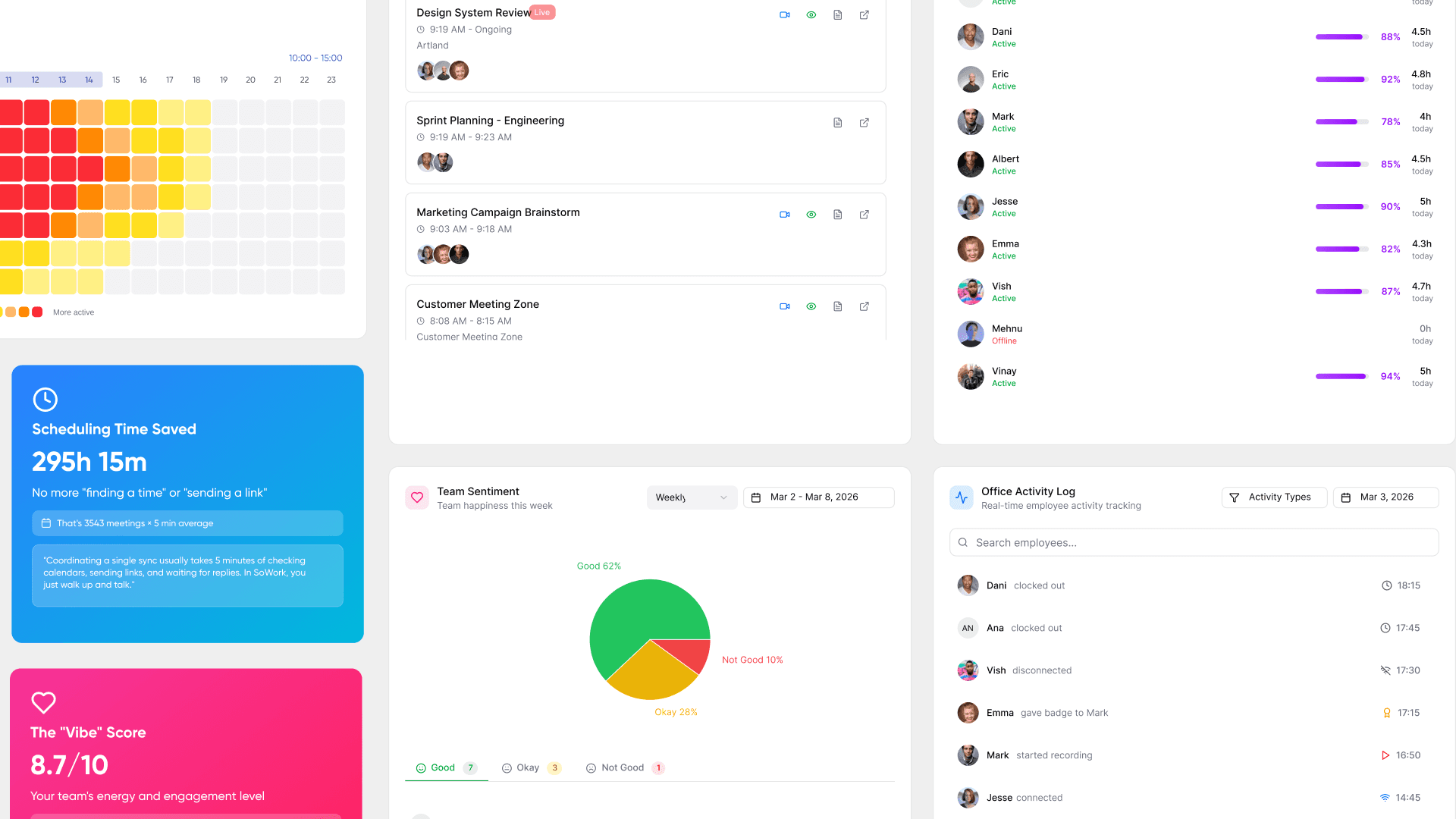
Virtual office platforms like SoWork give a richer sense of presence than a single dot. You can see who's free, focused or in a meeting, and start a conversation in one click.
SoWork syncs with Google Calendar and Outlook, so your status changes when a meeting starts. Focus Modes let people signal deep work while staying loosely connected. Admins set the automatic Away timer anywhere from 5 to 240 minutes. On Premium, people can choose to share which app they're working in. Through SoWork's MCP/API, AI tools like Claude can ask who's around or what a meeting decided [14]. SoWork is free for up to 10 users. Basic is $6/user/month and Premium is $15/user/month [14].
Bottom line: how should you stay active on Teams?
Set your status manually, make your computer's lock and sleep timers longer, and keep the mobile app in the foreground when you're on your phone. Teams' fixed five-minute timer will still flag you during focused work.
Use status messages, calendar blocks and agreed response times instead of jigglers. Those signals tell people far more than a green dot. If your team needs real presence awareness rather than an input timer, a virtual office like SoWork shows who's free, focused or in a meeting without making anyone fake activity.
Key Takeaways
Teams switches you to Away after five minutes without keyboard or mouse input, and right away when your screen locks or your computer sleeps.
Neither users nor admins can change the five-minute timer or turn auto-away off.
You can set a duration for every status except Available, so use durations for Busy or Do not disturb focus blocks.
On mobile, Teams shows Away whenever the app is in the background, and your most recently active device sets your status.
Mouse jigglers can be detected, and Wells Fargo fired more than a dozen employees for faking activity.
Status messages, calendar blocks and agreed response times are more honest and more useful than a green dot.
A virtual office like SoWork shows who's free, focused or in a meeting, and admins can set its Away timer anywhere from 5 to 240 minutes.
Related reading
Sources
Typing /available, /busy, /dnd, /brb, /away or /offline in the Teams command box sets your status
ITPro found one in six employees uses a mouse jiggler to disguise inactivity
Some users report the new Teams app still overrides a manually set status after extended inactivity
SoWork automatic Away is admin-configurable from 5 to 240 minutes (default 15), desktop only, and pauses during meetings and screen sharing; calendar sync, Focus Modes, App Activity on Premium, MCP/API; free for up to 10 users, Basic $6/user/month, Premium $15/user/month
Perguntas Frequentes
como ficar ativo no teams
Quanto tempo o Teams leva para me mostrar como Ausente?
Posso alterar o tempo de 5 minutos para o status Ausente no Teams?
Por que não consigo definir uma duração para o status Disponível no Teams?
Meu chefe consegue ver quando estou Ausente no Teams?
Um mouse jiggler pode ser detectado pelo meu empregador?
Iniciar uma reunião do Teams sozinho mantém meu status como ativo?
Por que o Teams me mostra como Ausente quando estou no celular?
Blogs
Leia artigos semelhantes
Análise de Equipes Remotas: O Guia Completo para Gestão do Trabalho Remoto Baseada em Dados em 2026
Guia Completo para Obter Visibilidade sobre o Desempenho e a Colaboração de Equipes Remotas